Parse your first document with Reducto in 5 minutes.
This guide walks you through your first Reducto API call. You will parse a document and get back structured JSON ready for LLMs, downstream extraction, or any other processing step in your pipeline.
from reducto import Reductoclient = Reducto()result = client.parse.run(input="https://cdn.reducto.ai/samples/fidelity-example.pdf")print(result.job_id)print(result.result.chunks[0].content[:1000])
import Reducto from "reductoai";const client = new Reducto();const result = await client.parse.run({ input: "https://cdn.reducto.ai/samples/fidelity-example.pdf",});console.log(result.job_id);console.log(result.result.chunks[0].content.slice(0, 1000));
For MCP, install once with uvx mcp-server-reducto --login, then ask the agent to call parse_document(document_url="https://cdn.reducto.ai/samples/fidelity-example.pdf").
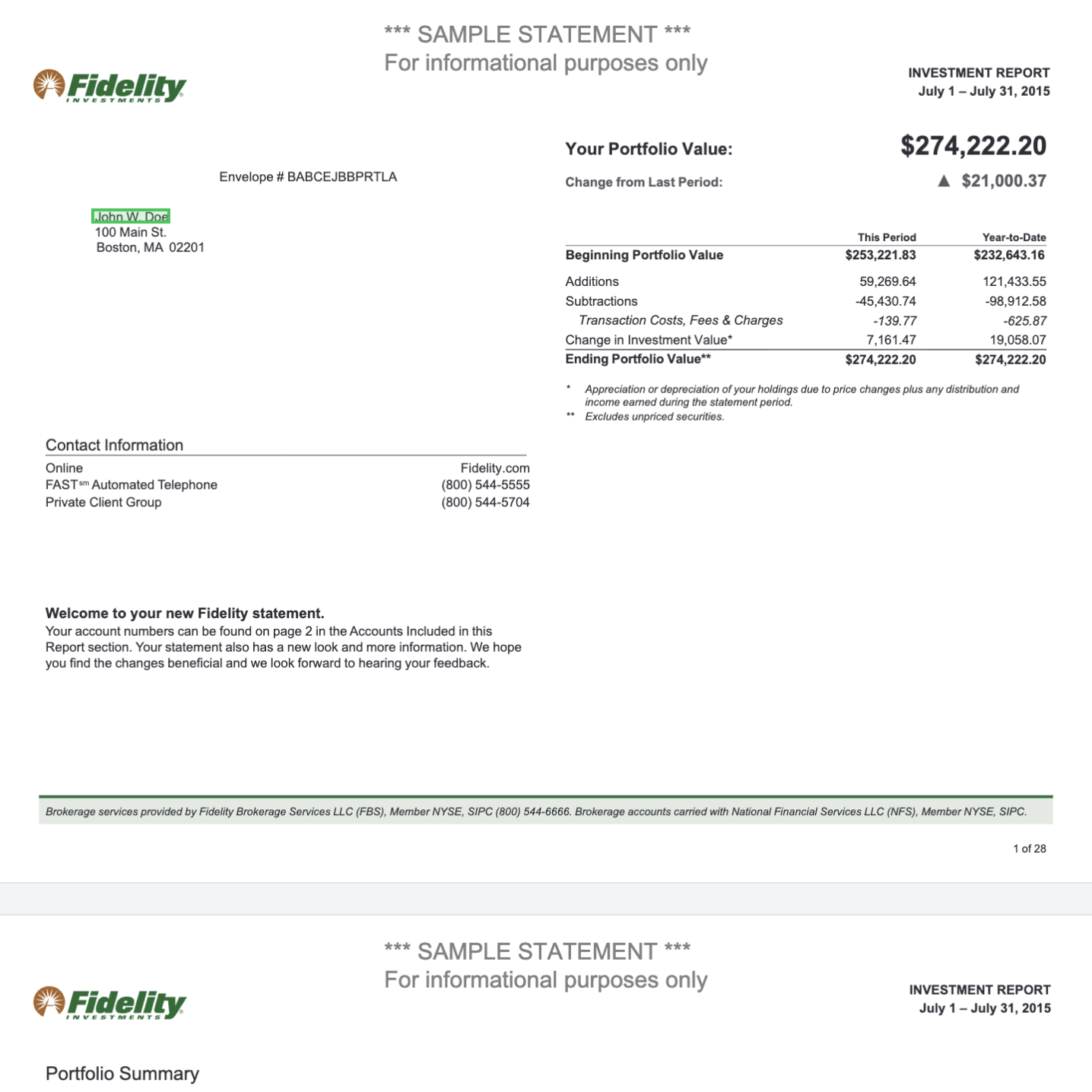
We’ll use a financial statement PDF that contains multiple tables, headers, account summaries, and formatted text. This is the kind of complex document that’s difficult to process manually but straightforward with Reducto.View the sample PDF in Studio or download it directly to follow along.What we want to extract:
The portfolio value table with beginning and ending values
Account information including account numbers and types
Income summary broken down by tax category
Top holdings with values and percentages
By the end of this guide, you’ll have all of this data in structured JSON that you can use in your application. For structured field extraction (e.g., extracting specific account numbers or values into typed fields), see the /extract endpoint after completing this quickstart.
In the Studio sidebar, click API Keys, then Create API Key. Give it a name and copy the key.
Click API Keys in the sidebar to create a new key
3
Set your API key as an environment variable
This allows the SDK to authenticate automatically without hardcoding the key in your code.
macOS / Linux
Windows (PowerShell)
export REDUCTO_API_KEY="your_api_key_here"
$env:REDUCTO_API_KEY="your_api_key_here"
4
Setup with AI
You can also copy the below snippet for your AI coding agent to connect to Reducto via the MCP Server.
## Add Reducto MCP Server### 1. Authenticate (one-time)```bashuvx mcp-server-reducto --login```This opens your browser to approve access. Your API key is saved to `~/.reducto/config.yaml`.### 2. Add to your MCP client**Claude Code:**```bashclaude mcp add reducto -- uvx mcp-server-reducto```**Claude Desktop**: edit `~/Library/Application Support/Claude/claude_desktop_config.json`:```json{ "mcpServers": { "reducto": { "command": "uvx", "args": ["mcp-server-reducto"] } }}```**Cursor**: edit `.cursor/mcp.json`:```json{ "mcpServers": { "reducto": { "command": "uvx", "args": ["mcp-server-reducto"] } }}```**VS Code**: edit `.vscode/mcp.json`:```json{ "servers": { "reducto": { "command": "uvx", "args": ["mcp-server-reducto"] } }}```### 3. Use itThe server provides these tools:| Tool | What it does ||------|-------------|| `upload_file` | Upload a local file or URL to Reducto (returns `reducto://` URL) || `parse_document` | Parse a document into structured text, tables, figures || `extract_data` | Extract structured JSON from a document using a schema || `split_document` | Segment a document into labeled sections || `classify_document` | Categorize a document type || `edit_document` | Fill forms or modify a PDF/DOCX |**Local files:** Use `upload_file` first, e.g. `upload_file("./report.pdf")`, then pass the returned `reducto://` URL to other tools.**Chain operations:** `parse_document` returns a `job_id`. Pass `jobid://<job_id>` to `extract_data` or `split_document` to skip re-parsing.
Now let’s write the code to parse our financial statement. We’ll go through each part step by step.
Python
Node.js
Go
cURL
1
Import the SDK and initialize the client
First, we import the Reducto client. When you create a Reducto() client without passing an API key, it automatically reads from the REDUCTO_API_KEY environment variable you set earlier.
from reducto import Reducto# The client reads REDUCTO_API_KEY from your environmentclient = Reducto()
2
Upload your document
Before parsing, you need to upload the document to Reducto’s servers. The upload() method accepts a file path (as a string) and returns a reference that you’ll use in the next step.You can download the sample PDF from here.
from pathlib import Path# Upload the PDF file to Reductoupload = client.upload(file=Path("fidelity-example.pdf"))print(f"Uploaded: {upload.file_id}")
You can also pass a URL directly to the parse method if your document is already hosted somewhere accessible, like an S3 bucket:
result = client.parse.run(input="https://cdn.reducto.ai/samples/fidelity-example.pdf")
3
Parse the document
Now we call the parse.run() method with the uploaded file reference. This sends the document through Reducto’s processing pipeline, which runs OCR, detects layout, extracts tables, and structures everything into chunks.
# Parse the uploaded documentresult = client.parse.run(input=upload.file_id)# Check what we got backprint(f"Job ID: {result.job_id}")print(f"Pages processed: {result.usage.num_pages}")print(f"Credits used: {result.usage.credits}")print(f"Number of chunks: {len(result.result.chunks)}")
4
Access the extracted content
The response contains chunks, which are logical sections of the document. Each chunk has a content field with the full text and a blocks field with individual elements like tables, headers, and paragraphs.
# Loop through each chunkfor i, chunk in enumerate(result.result.chunks): print(f"\n=== Chunk {i + 1} ===") print(chunk.content[:500]) # First 500 characters # Look at individual blocks within this chunk for block in chunk.blocks: print(f" [{block.type}] on page {block.bbox.page}") # Tables are returned as HTML by default if block.type == "Table": print(f" Table content: {block.content[:200]}...")
Each block has a type that tells you what kind of content it is: Title, Section Header, Text, Table, Figure, Key Value, and others. The bbox field contains the bounding box coordinates so you know exactly where on the page this content came from.
Complete code:
from pathlib import Pathfrom reducto import Reductoclient = Reducto()upload = client.upload(file=Path("fidelity-example.pdf"))result = client.parse.run(input=upload.file_id)print(f"Processed {result.usage.num_pages} pages")for chunk in result.result.chunks: print(chunk.content) for block in chunk.blocks: if block.type == "Table": print(f"Found table on page {block.bbox.page}")
All Node.js examples use await and must be run inside an async function, or in a file with top-level await enabled (ES modules with Node.js 14.8+).
1
Import the SDK and initialize the client
Import the Reducto client and the fs module for reading files. The client automatically uses the REDUCTO_API_KEY environment variable for authentication.
import Reducto from 'reductoai';import fs from 'fs';// The client reads REDUCTO_API_KEY from your environmentconst client = new Reducto();
2
Upload your document
Use createReadStream to upload the file to Reducto. This returns a reference you’ll use when calling the parse endpoint.You can download the sample PDF from here.
// Upload the PDF file to Reductoconst upload = await client.upload({ file: fs.createReadStream("fidelity-example.pdf") });console.log(`Uploaded: ${upload.file_id}`);
3
Parse the document
Call parse.run() with the uploaded file reference. Reducto processes the document and returns structured content.
// Parse the uploaded documentconst result = await client.parse.run({ input: upload.file_id });console.log(`Job ID: ${result.job_id}`);console.log(`Pages processed: ${result.usage.num_pages}`);console.log(`Credits used: ${result.usage.credits}`);console.log(`Number of chunks: ${result.result.chunks.length}`);
4
Access the extracted content
Loop through the chunks and blocks to access the extracted text, tables, and other elements.
// Loop through each chunkfor (let i = 0; i < result.result.chunks.length; i++) { const chunk = result.result.chunks[i]; console.log(`\n=== Chunk ${i + 1} ===`); console.log(chunk.content.substring(0, 500)); // Look at individual blocks within this chunk for (const block of chunk.blocks) { console.log(` [${block.type}] on page ${block.bbox.page}`); if (block.type === "Table") { console.log(` Table content: ${block.content.substring(0, 200)}...`); } }}
Complete code:
import Reducto from 'reductoai';import fs from 'fs';const client = new Reducto();async function main() { const upload = await client.upload({ file: fs.createReadStream("fidelity-example.pdf") }); const result = await client.parse.run({ input: upload.file_id }); console.log(`Processed ${result.usage.num_pages} pages`); for (const chunk of result.result.chunks) { console.log(chunk.content); for (const block of chunk.blocks) { if (block.type === "Table") { console.log(`Found table on page ${block.bbox.page}`); } } }}main();
The Go SDK is currently in alpha (v0.1.0-alpha.1). The API may change in future releases.
1
Import the SDK and initialize the client
Import the Reducto client and the option package for configuration. The Go SDK requires you to pass the API key explicitly using option.WithAPIKey().
package mainimport ( "context" "fmt" "io" "os" reducto "github.com/reductoai/reducto-go-sdk" "github.com/reductoai/reducto-go-sdk/option" "github.com/reductoai/reducto-go-sdk/shared")func main() { // Initialize client with API key from environment client := reducto.NewClient(option.WithAPIKey(os.Getenv("REDUCTO_API_KEY")))}
2
Upload your document
Open the file and upload it to Reducto. The upload returns a file ID that you’ll use for parsing.You can download the sample PDF from here.
Call Parse.Run() with the file ID. The Go SDK requires you to wrap the file ID with shared.UnionString() and then with reducto.F[...]() because the SDK uses strongly-typed union parameters.
result, err := client.Parse.Run(context.Background(), reducto.ParseRunParams{ ParseConfig: reducto.ParseConfigParam{ // The file ID must be wrapped in shared.UnionString() and reducto.F[...]() DocumentURL: reducto.F[reducto.ParseConfigDocumentURLUnionParam]( shared.UnionString(upload.FileID), ), },})if err != nil { fmt.Printf("Parse error: %v\n", err) return}fmt.Printf("Job ID: %s\n", result.JobID)fmt.Printf("Pages: %d\n", result.Usage.NumPages)// Note: To view in Studio, construct the URL: https://studio.reducto.ai/job/{job_id}
4
Access the extracted content
The result contains chunks with extracted content. The Chunks field is typed as interface{}, so you need to type assert it to []shared.ParseResponseResultFullResultChunk before you can iterate over it. When checking block types, use the SDK constants instead of string comparisons.
if result.Result.Type == shared.ParseResponseResultTypeFull { // Type assert Chunks from interface{} to the actual type chunks, ok := result.Result.Chunks.([]shared.ParseResponseResultFullResultChunk) if ok { for _, chunk := range chunks { fmt.Println(chunk.Content) for _, block := range chunk.Blocks { // Use SDK constants for block type comparisons if block.Type == shared.ParseResponseResultFullResultChunksBlocksTypeTable { fmt.Printf("Found table on page %d\n", block.Bbox.Page) } } } }}
enhance.agentic: Runs customized agentic processing with a scoped custom prompt. This adds latency.
enhance.summarize_figures: Legacy Parse only. Generates descriptions of figures. r-1 handles figures natively and ignores this setting.
formatting.table_output_format: Controls how tables are returned. Options are html, md (markdown), json, csv, dynamic (default, returns markdown for simple tables and HTML for complex ones), or jsonbbox.
settings.page_range: Limits processing to specific pages. Useful for large documents where you only need certain sections.
This means your API key is missing or invalid. Check that the REDUCTO_API_KEY environment variable is set correctly and that the key hasn’t expired in Studio.
Tables aren't structured correctly
Try formatting.table_output_format set to "html" or "json" for more structured output. If the table needs custom handling, add a table-scoped prompt to enhance.agentic, such as {"scope": "table", "prompt": "Preserve domain-specific notation such as <0.01, ±, and N/A exactly as written."}.
Content is missing or garbled
r-1 handles scanned documents and low-quality PDFs natively. If the document is password-protected, pass the password in settings.document_password. This may also be due to bad metadata polluting the output, in which case, reach out to Reducto support.
Every response includes a studio_link that opens the job in Reducto Studio. Use it to visually inspect what was extracted and debug any issues.
Was this page helpful?
Assistant
Responses are generated using AI and may contain mistakes.